
Configure Models
This page explains how to configure a large language model for Hermes, including the differences between the three configuration methods, how to obtain an API Key, console configuration steps, supported models, and model selection guidance.
This page covers
-
Differences between the three configuration methods (Coding Plan / API / Custom Model)
-
How to obtain an API Key
-
Console configuration steps
-
Model switching
-
Supported models
-
Model selection guidance
Three configuration methods
The first-level dropdown in the console "Model" card provides three options:
| Method | Billing mode | API Key source | Use case |
|---|---|---|---|
| Model Coding Plan | Monthly / yearly | Provider | High-frequency usage |
| Model API | Pay-as-you-go | Provider | Low-frequency use or trial |
| Custom model | Depends on endpoint | User-provided | Connect overseas models or OpenAI-compatible endpoints |
General process for obtaining an API Key
Provider interfaces differ, but the process is generally the same:
-
Visit the provider website: After selecting a model in the console model card, the "Get API KEY" link appears below. Click it to open the provider website
-
Register or sign in: Most Chinese platforms support WeChat or phone-number login
-
Complete real-name verification: Chinese model providers generally require real-name verification before API calls are allowed
-
Open the API Key management page: Usually under "Console → API Management / Key Management / Credentials"
-
Create a new Key: Name the Key (for example,
LightVela) and copy it immediately after creation. Most platforms show the complete Key only once -
Return to LightVela and paste the Key
Configure in the console
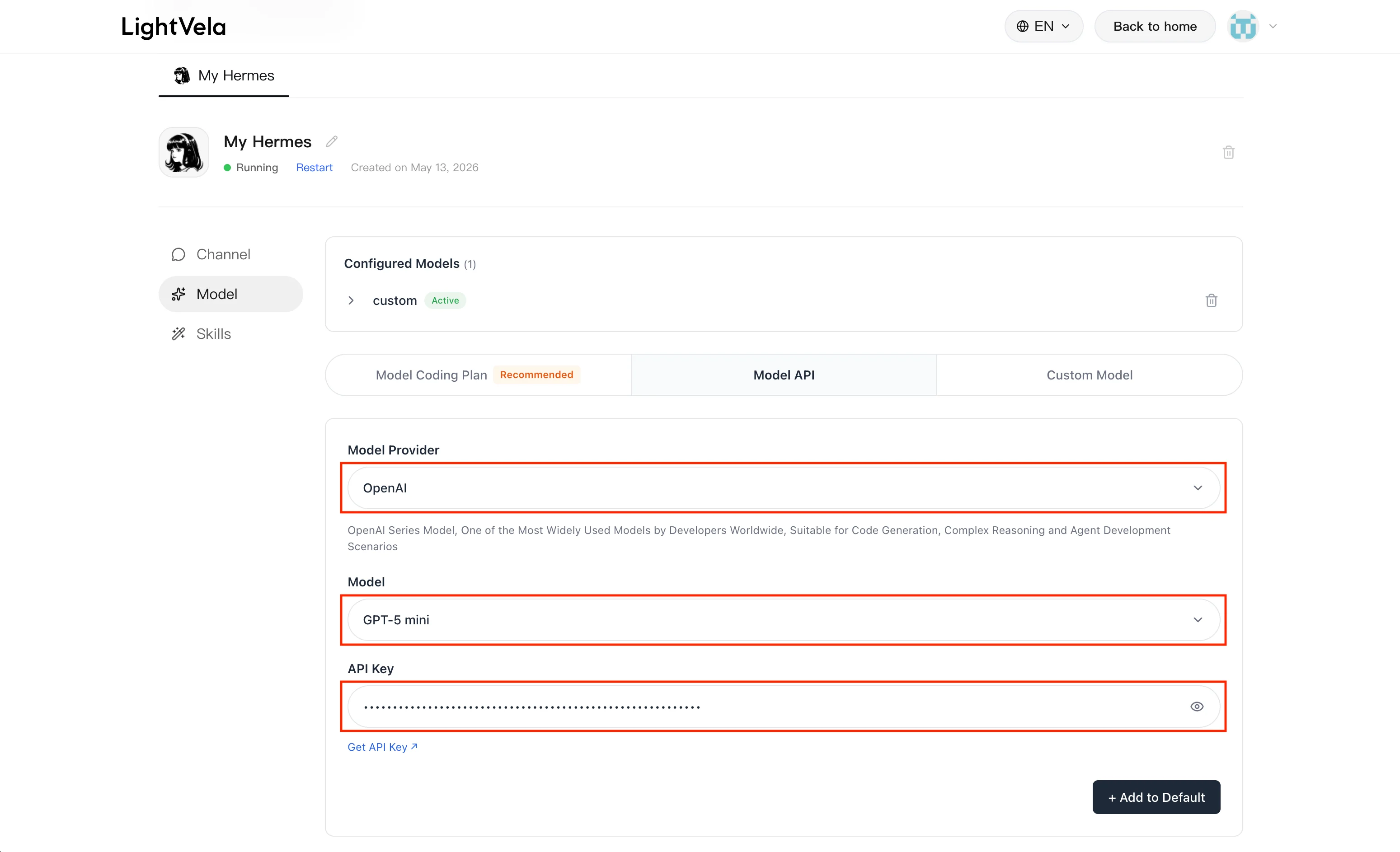
Enter the console and open the "Model" button.
Configuration steps
-
Choose source (first-level dropdown): Model API / Model Coding Plan / Custom Model
-
Choose specific model (second-level dropdown): Available models are shown based on the source selected above
-
Enter API Key: Paste the Key you obtained. The eye icon on the right toggles visibility
-
Click "Add as default"
-
The corresponding record appears in the "Current model" list, indicating successful configuration
Additional fields for custom models
When selecting "Custom Model", you usually need to fill in the following fields in addition to the API Key:
-
Base URL: The model service API address, for example
https://api.openai.com/v1 -
Model Name: The model identifier, for example
gpt-4oorclaude-3-5-sonnet-20241022
The actual fields are subject to the console interface.
Switch models
How to switch
Run the configuration steps again. The new "Add as default" action overwrites the previous configuration.
Impact on memory
Switching models does not affect conversation memory. Memory belongs to Hermes itself; the model is only responsible for generating responses.
Supported models
Model Coding Plan (monthly)
| Name | Provider |
|---|---|
| Zhipu AI (GLM International - Coding Plan) | Zhipu AI |
| Kimi Coding Plan | Moonshot AI |
| Xiaomi Token Plan | Xiaomi |
| Bailian Coding Plan | Alibaba Cloud Bailian |
| Volcano Engine Ark Coding Plan | Volcano Engine (ByteDance) |
Model API (pay-as-you-go)
| Name | Provider |
|---|---|
| OpenAI | OpenAI |
| Anthropic | Anthropic |
| Google Gemini | |
| OpenRouter | OpenRouter |
| DeepSeek | DeepSeek |
| Bailian (Qwen) | Alibaba |
| MiniMax (International) | MiniMax |
| Moonshot AI (Kimi International) | Moonshot |
| Zhipu AI (GLM International) | Zhipu |
| Volcano Engine (Doubao) | ByteDance |
| Xiaomi MiMo | Xiaomi |
Custom models
Any endpoint compatible with the OpenAI Chat Completions protocol can be connected, including:
-
Self-hosted models: vLLM, Ollama, LM Studio, and other services exposing OpenAI-compatible endpoints
-
Aggregation platforms: OpenRouter, etc.
Selection guidance
Selection directions for different priorities:
| Priority | Suggested direction |
|---|---|
| Free quota | Many providers offer free quota for new accounts; start with a trial |
| Long-context processing | Choose models with larger context windows (such as Moonshot AI) |
| Response speed | Providers vary significantly; rely on actual experience |
| Chinese understanding | Chinese models generally support Chinese better |
| High-frequency usage | Choose the corresponding provider's monthly Coding Plan |
Recommendation: use the Launch plan trial credits for several conversations first. After confirming that Hermes works normally, decide which model to use.
FAQ
| Issue | Possible cause | Solution |
|---|---|---|
| "Current model" is still empty after entering a Key | Key format is wrong or contains spaces | Copy and paste again; confirm there are no leading or trailing spaces |
| No response for a long time after sending a message | Provider balance is insufficient or the Key is disabled | Check balance and Key status in the provider console |
| Response content is garbled or meaningless | Custom model endpoint is not compatible with the OpenAI protocol | Verify endpoint availability with another OpenAI-compatible client first |
| "Model response timeout" | Provider rate limit or network instability | Try again later or switch to another provider |
| Not sure about the Base URL of a custom model | — | Check the corresponding service API documentation; it is usually https://xxx.com/v1 |
Conversation error "HTTP 401:InvalidAuthentication" or similar 401 errors
If HTTP 401:InvalidAuthentication or another 401 xxx error appears during a conversation with OpenClaw, it is usually caused by one of the following:
-
The model API Key is configured incorrectly;
-
The Coding Plan API Key is confused with a regular model API Key;
-
The domestic or international version of a model provider is selected incorrectly.
When this happens, check the model configuration again.