
Configure Channel - WhatsApp
The WhatsApp channel uses QR-code access, similar to WeChat, and is suitable for quickly connecting Hermes to WhatsApp conversations.
This page covers
-
Scanning a QR code with WhatsApp on your phone to authorize access
-
Chatting with Hermes in WhatsApp
Steps
1. Enter the console
Sign in to LightVela, click "My Hermes" in the upper-right corner to enter the console, and find the "Channel" button.
2. Select the WhatsApp channel
Find the WhatsApp card and click "+ Connect".
3. Scan the QR code with WhatsApp on your phone
-
Open WhatsApp on your phone
-
Tap the "Camera" button in the upper-right corner
-
Scan the QR code on your computer screen
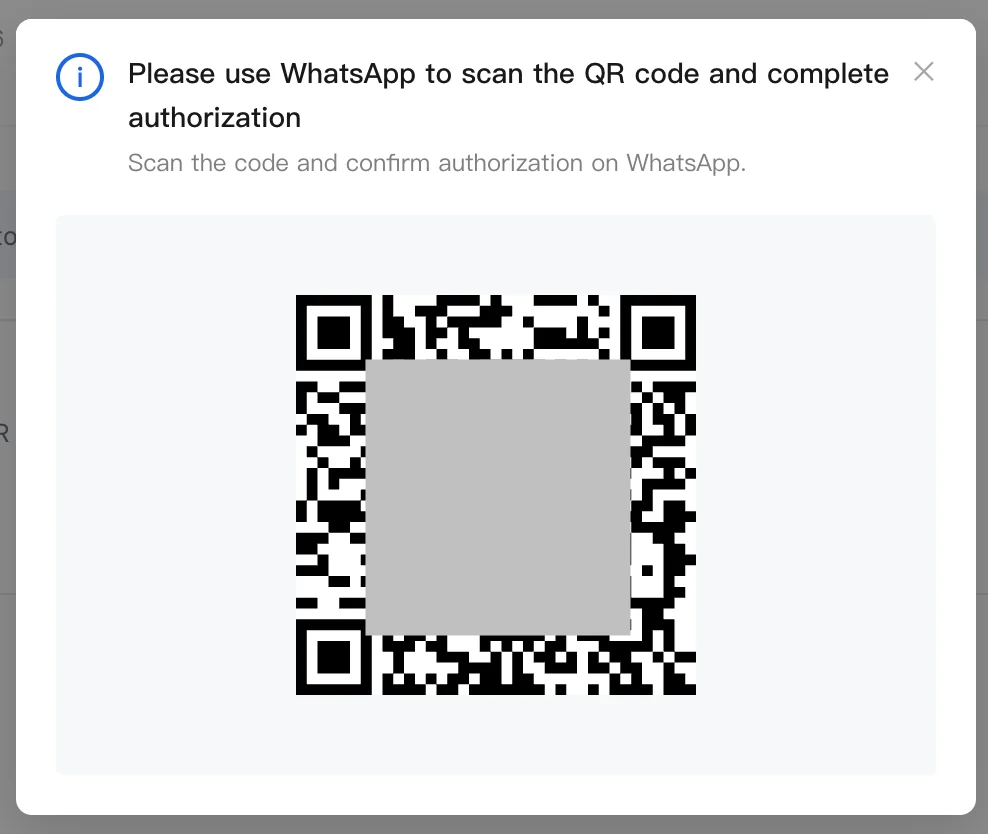
- Follow the prompts on your phone to complete the connection
4. Find yourself in WhatsApp
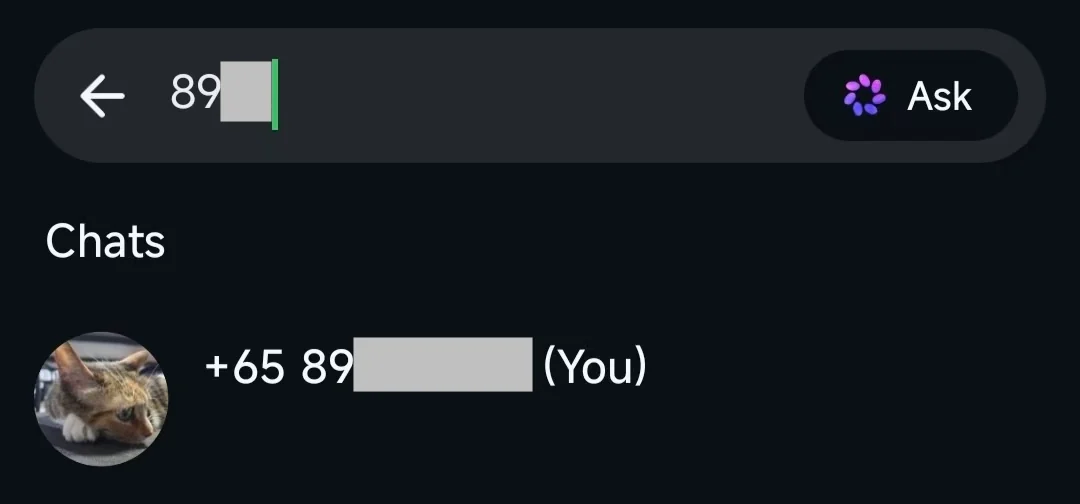
Chat with yourself — that's your bot.
Open the chat with the bot and send a test message:
HiYou should receive a Hermes reply within a few seconds.
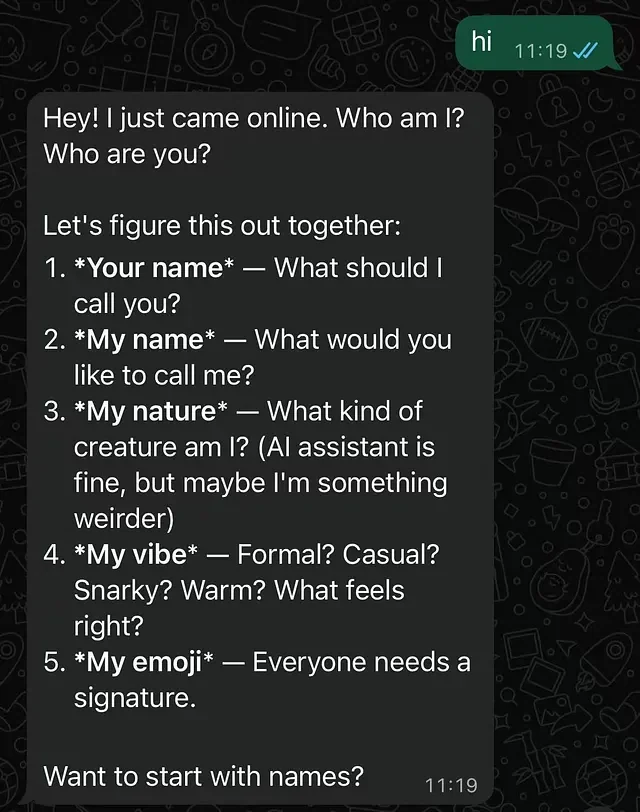
Success state
-
The "Connected channels" list in the console contains "WhatsApp"
-
The corresponding bot can be found in WhatsApp contacts
-
Hermes replies after you send a message
Supported message types
After access succeeds, the WhatsApp bot can receive and reply to basic text messages and supports more message types as follows:
| Message type supported by WhatsApp bot | Supported |
|---|---|
| Receive text messages | ✅ Supported |
| Receive images and videos | ✅ Supported |
| Receive files | ✅ Supported |
| Reply with text messages | ✅ Supported |
| Reply with images and videos | ✅ Supported |
| Reply with files | ✅ Supported |
| Proactively send messages (such as scheduled reminders) | ✅ Supported |
FAQ
| Issue | Possible cause | Solution |
|---|---|---|
| Cannot connect to WhatsApp | Phone number format is incorrect, or WhatsApp Business configuration is incomplete | Use a complete international format such as +1 or +86, and check that WhatsApp Business / Meta configuration is complete |
| Verification code not received | Phone number unavailable, network delay, or WhatsApp verification limits | Confirm the phone number can receive WhatsApp messages; wait a few minutes and retry |
| Verification code shows as invalid after entering | Code expired or entered incorrectly | Request a new code and confirm there are no extra spaces |
| No response in the console after access | Authorization or configuration has not finished syncing | Refresh the console to confirm status; if access did not succeed, try again |
| Cannot find the bot contact in WhatsApp | The bot's number was not saved, or the chat has not started | Save the bot's number, or open the chat via the link / QR code provided by the console |
| No reply after sending a message | Model is not configured, trial credits are exhausted, or the WhatsApp channel has not been connected successfully | Check the "Current model" status in the "1. Model" card and confirm the WhatsApp channel shows as connected |
| Cannot receive images, files, or voice messages | Media permission, format, or channel capability limits | Confirm the file type is supported; if voice cannot be recognized, check whether speech-to-text / media processing is enabled |
| Proactive messages fail | WhatsApp limits proactive messages via message templates and conversation windows | Confirm the user has started a conversation with the bot; if the conversation window has expired, use an approved message template |
| How to unlink | — | Delete the corresponding WhatsApp record in the "Connected channels" list |
| Can the same WhatsApp number connect to multiple Hermes instances | Not recommended; one WhatsApp number should be bound to one Hermes | If you need multiple Hermes instances, use separate WhatsApp numbers |
Channel notes
-
Message types: Supports text, images, videos, files, voice messages, and more. See "Supported message types" above
-
Group chat support: Group chats are not currently supported; only 1-to-1 conversations are supported
-
Connection interruption: Long periods of no response may indicate authorization was revoked. Return to the console and authorize access again
Next steps
-
Configure Channel - Discord — Community operations and developer communities
-
Configure Channel - QQ — Bot created manually, integrated via AppID/AppSecret
-
Configure Channel - WeCom — Enterprise internal collaboration and office scenarios
-
Configure Skills — Extend Hermes capabilities