
WeCom
Configure Channel - WeCom
The WeCom channel uses QR-code access and is the simplest channel to configure.
This page covers
-
Generating a WeCom access QR code in LightVela
-
Scanning the QR code with WeCom on your phone
-
Chatting with Hermes in WeCom
Steps
1. Enter the console
Sign in to LightVela, click "My Hermes" in the upper-right corner to enter the console, and find the "Channel" button.
2. Select the WeCom channel
Find the WeCom module and click "+ Connect".
3. Click "Authorize Access"
A QR code appears on the page.
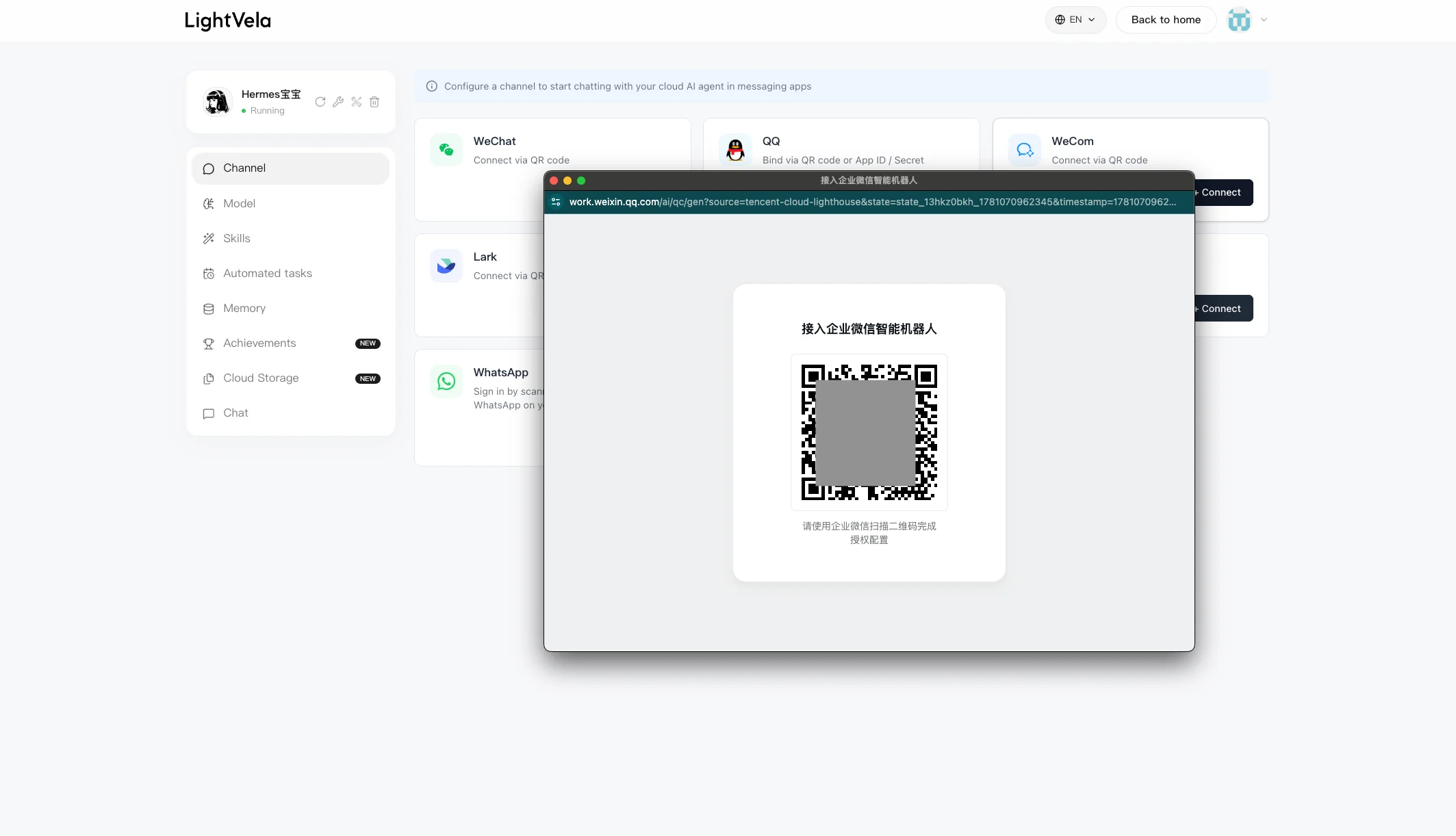
4. Scan with WeCom on your phone
-
Open WeCom on your phone
-
Tap "+" in the upper-right corner → "Scan"
-
Scan the QR code on your computer screen
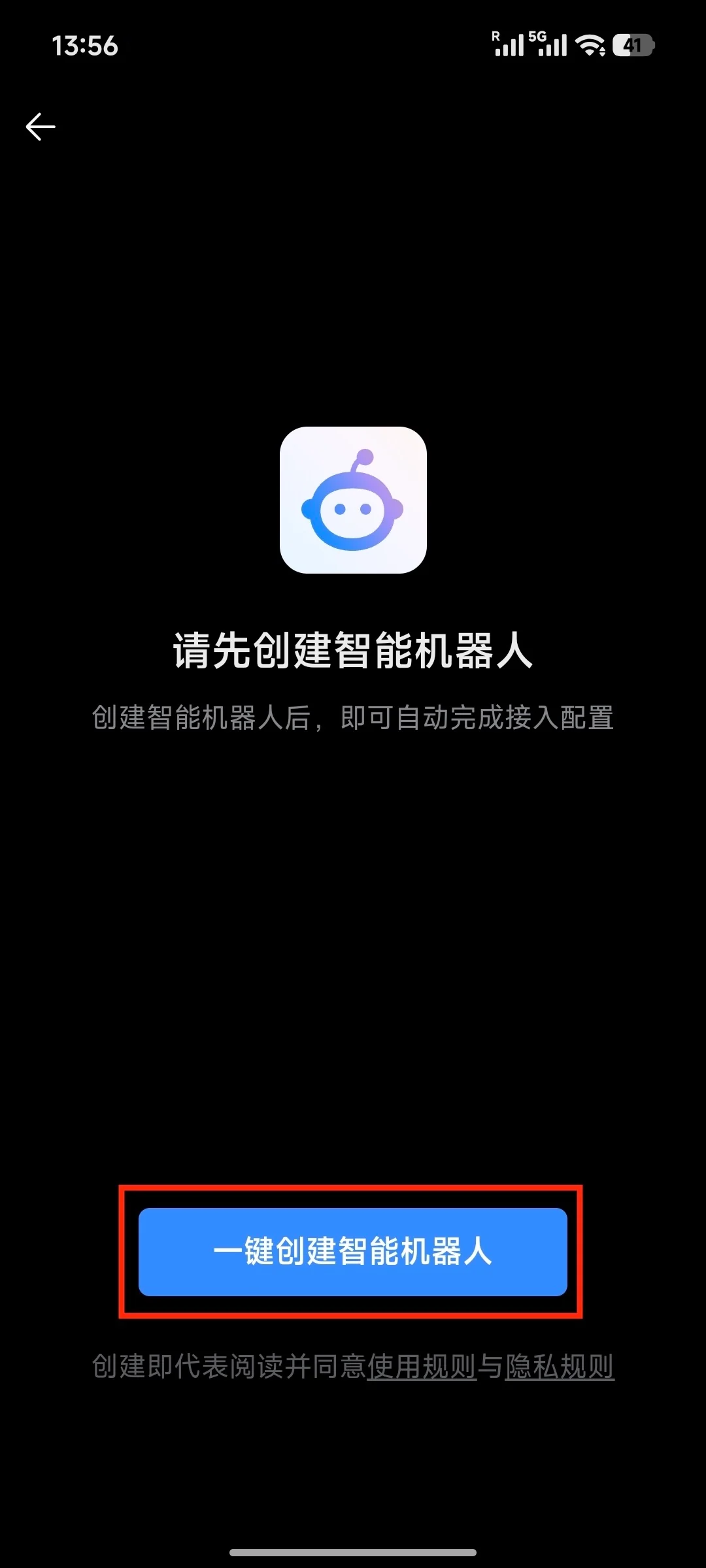
- Follow the prompts on your phone to complete authorization
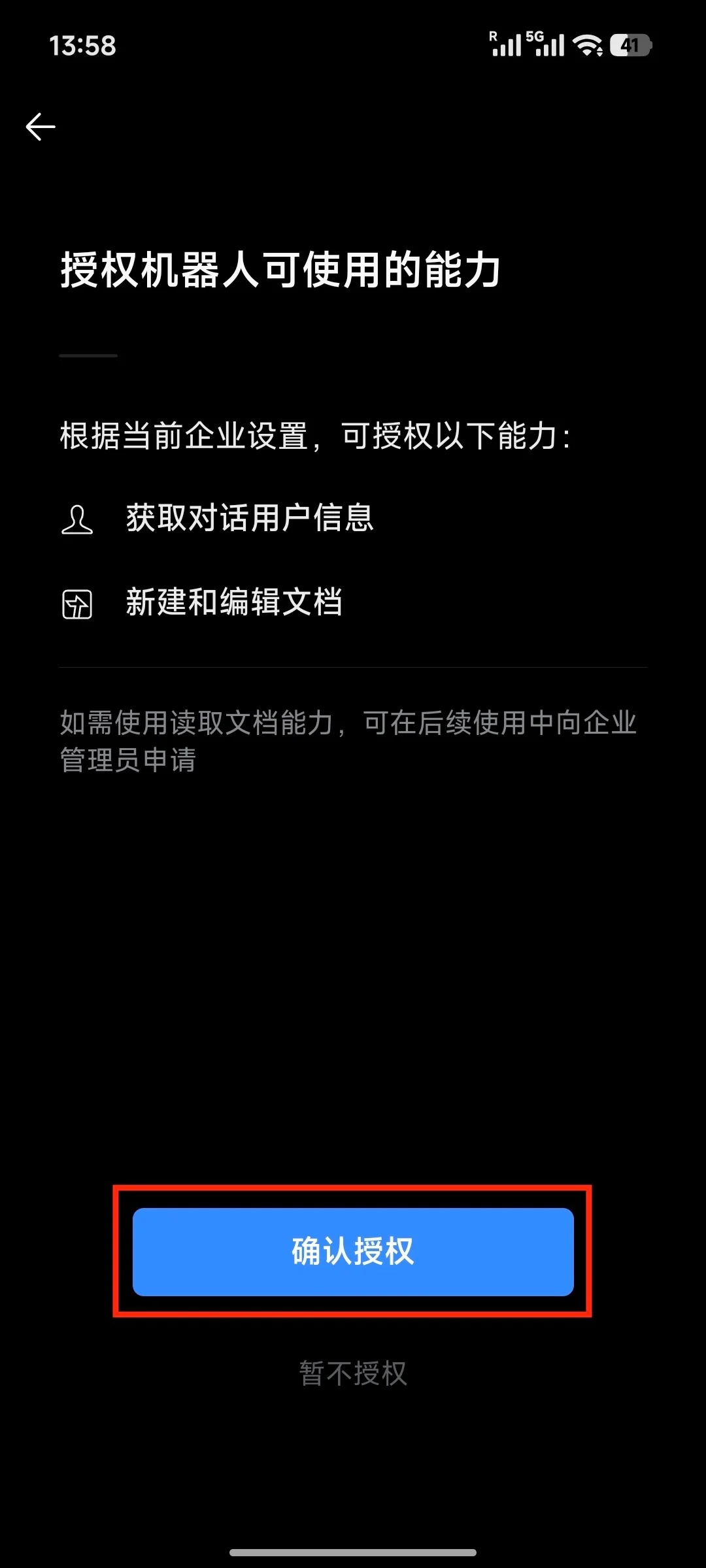
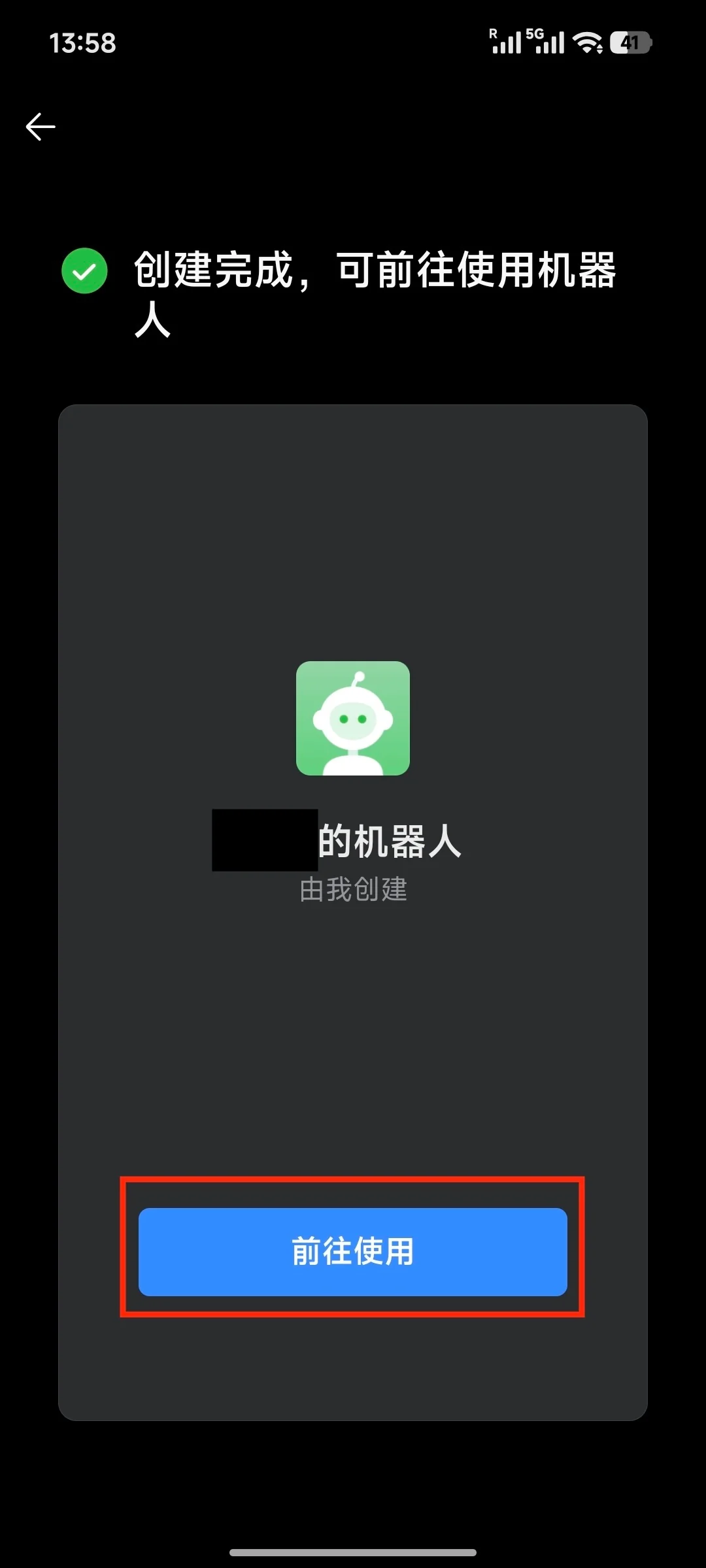
5. Chat with the created bot
After a successful scan:
-
The dialog closes automatically and you'll be taken to the created bot page
-
WeCom automatically adds the bot to your contacts
Open the bot's chat window and send a test message:
HelloYou'll receive a Hermes reply within seconds.
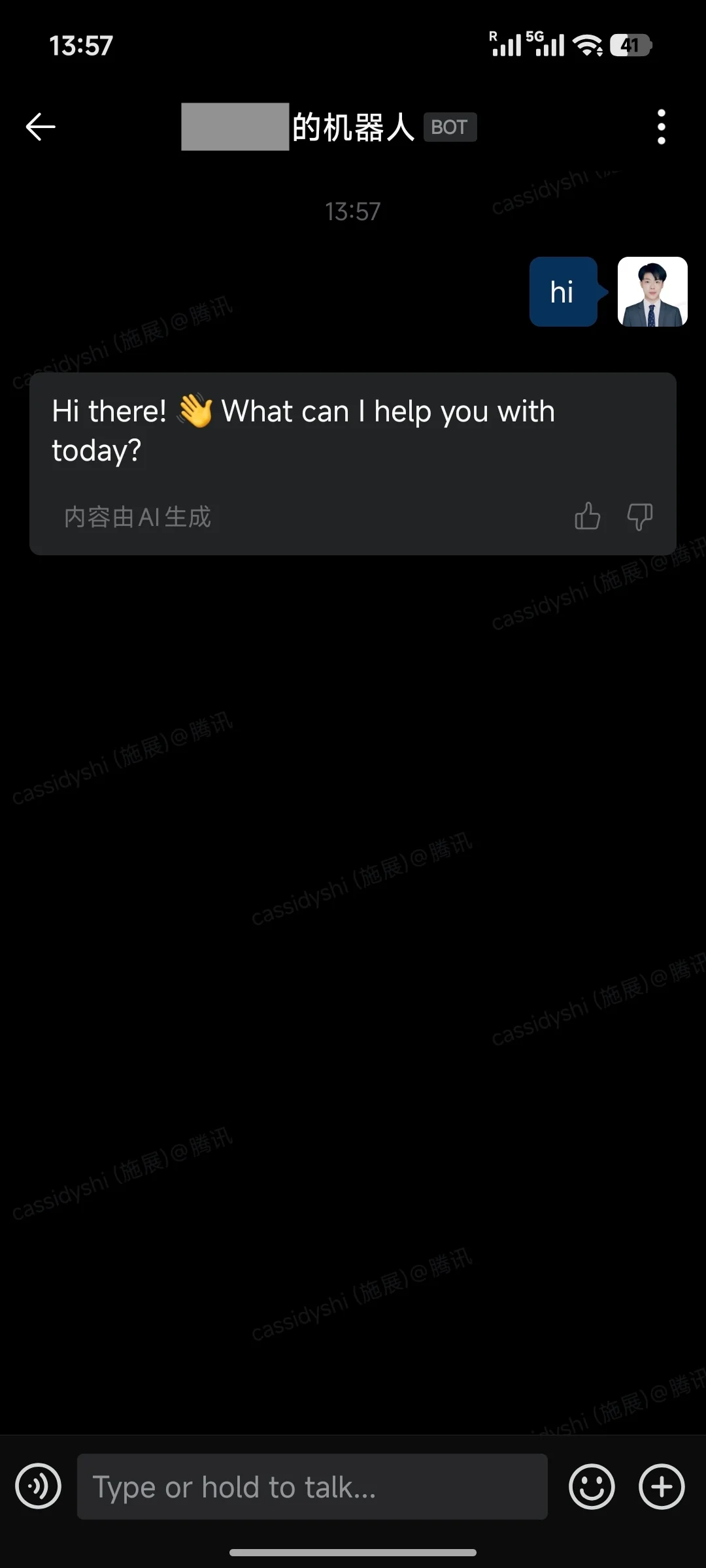
Success state
-
A "WeCom" entry appears in the console's "Connected Channels" list
-
The bot can be found in your WeCom contacts
-
Sending a message receives a Hermes reply
Supported message types
After integration, the WeCom bot supports more than basic text. The full list:
| WeCom bot — supported message types | Supported |
|---|---|
| Receive text messages | ✅ Yes |
| Receive images / video | ✅ Yes |
| Receive files | ✅ Yes |
| Receive voice messages | ✅ Yes |
| Reply with text messages | ✅ Yes |
| Reply with images / video | ✅ Yes |
| Reply with files | ✅ Yes |
| Send messages proactively (e.g. scheduled reminders) | ✅ Yes |
FAQ
| Symptom | Possible cause | Resolution |
|---|---|---|
| WeCom shows "Invalid QR code" after scanning | The QR code has expired | Close the dialog and click "Authorize Access" again |
| No response on the desktop after scanning | Network delay or authorization not yet completed | Refresh the console page to confirm the status; if not connected, retry |
| Bot contact not found in WeCom | Messages collapsed under "Service Notifications" | Search "LightVela" or your Hermes name from the top of WeCom |
| No reply after sending a message | Model not configured or trial credits exhausted | Check the "Current Model" status on the "1. Model" card |
| How to disconnect | — | Delete the entry from the "Connected Channels" list |
| Can a single WeCom account connect to multiple Hermes instances | The Launch plan caps you at 1 Hermes | Not applicable |
Channel notes
-
Message types: Text, images, video, files, voice, and more — see "Supported message types" above
-
Group chat support: Group chat is not supported for now; only 1-on-1 conversations work
-
Connection drops: Long unresponsive periods usually mean the authorization was revoked — re-authorize from the console
Next steps
-
Configure Channel - Lark — Office scenarios with rich text and group chat
-
Configure Skills — Extend Hermes capabilities